How to Set Up a TP-Link Extender Easily
Slow Wi-Fi can be one of the most frustrating problems at home or in the office. You might have a strong signal in your living room, but as soon as you move to your bedroom or basement, the connection becomes weak or even disappears. This is where a TP-Link extender can make a big difference.
it is a small but powerful device that helps expand your existing Wi-Fi coverage. Instead of buying a new router or changing your internet provider, you can simply add this extender to eliminate dead zones. Setting it up may sound technical, but in reality, the process is quite simple.
What Is a TP-Link Extender?
It also known as a Wi-Fi range extender or repeater, is designed to boost your existing wireless signal. Think of it as a “bridge” that catches your router’s Wi-Fi and then rebroadcasts it to areas where the signal is weak.
For example:
- If your router is in the living room, but your upstairs bedroom barely gets Wi-Fi, an extender can fill that gap.
- It doesn’t replace your router. Instead, it works with it to give you a wider coverage area.
- Most extenders are small, easy to plug into a wall outlet, and have simple indicator lights that show connection status.
Key Benefits of a TP-Link Extender:
- Eliminates Wi-Fi dead zones in your home or office
- Provides stronger connections for streaming, gaming, and video calls
- Supports multiple devices without slowing down your network
- Easy to install with different setup methods (WPS, web browser, or TP-Link app)
In short, if you often find yourself frustrated with weak Wi-Fi in certain corners of your home, itis a budget-friendly and effective solution.
How to Set Up a TP-Link Extender
Now let’s get to the main part: setting up your TP-Link extender. Don’t worry—it’s not complicated. You don’t need to be a tech expert. In fact, most users can set it up in less than 10 minutes.
There are three main ways to set up a TP-Link extender: using the WPS button, using a web browser, or using the TP-Link Tether app. Let’s go through each method so you can pick the one that works best for you.
Setup Using the WPS Button (Quick and Easy)
This is the fastest method, especially if your router also has a WPS button.
Steps:
- Plug your TP-Link extender into a power outlet near your router.
- Wait for the power light to turn on.
- Press the WPS button on your router.
- Within two minutes, press the WPS button on your TP-Link extender.
- Wait for the LED lights to turn solid—this confirms the connection.
- Move the extender to a spot halfway between your router and the area with weak Wi-Fi.
That’s it! Your extender is now boosting your Wi-Fi automatically.
Setup Using a Web Browser
If your router doesn’t have a WPS button, you can use the web browser method.
Steps:
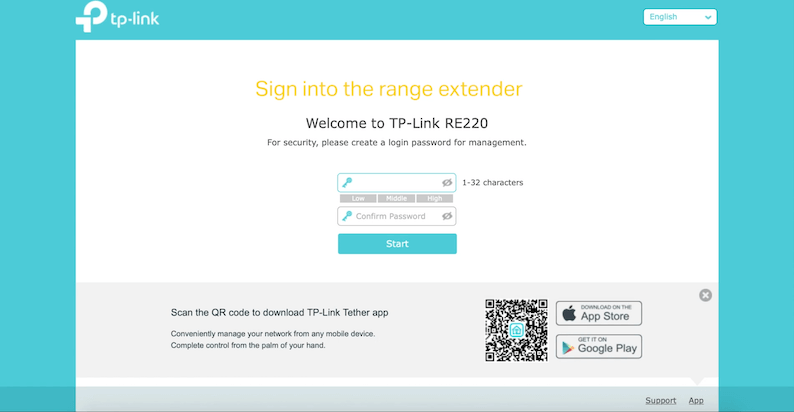
- Plug in your TP-Link extender and connect your computer or phone to the extender’s default Wi-Fi (usually named something like TP-Link_Extender).
- Open a web browser and type tplinkrepeater.net or the IP address (printed on your extender’s label).
- Log in with the default username and password (often admin/admin unless you’ve changed it).
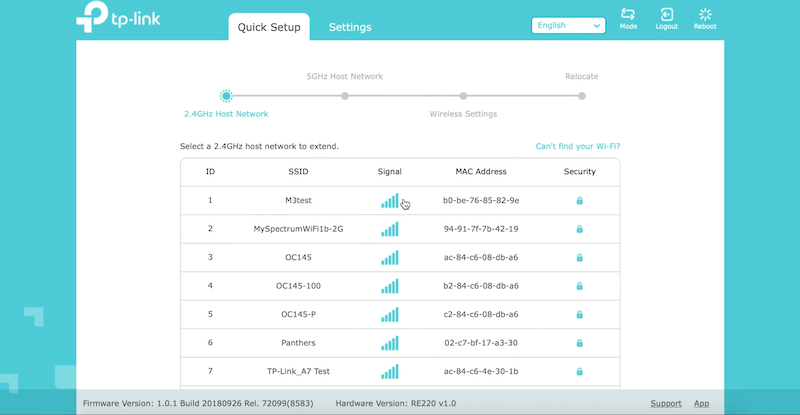
- The setup page will appear. Select your main Wi-Fi network from the list.
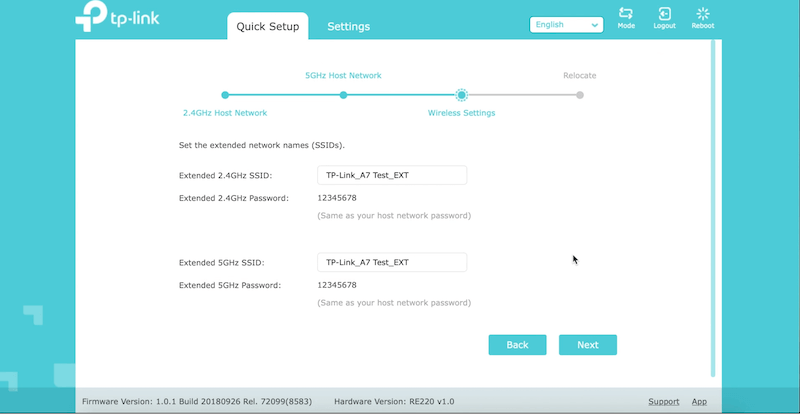
- Enter your Wi-Fi password.
- Confirm the settings and restart the extender if needed.
- Move the extender to a good location for better coverage.
This method gives you more control and lets you customize settings such as security and dual-band connections.
Setup Using the TP-Link Tether App
If you prefer using your phone, the Tether app makes setup easy and user-friendly.
Steps:
- Download the TP-Link Tether app from the App Store or Google Play.
- Plug in your extender and connect your phone to its default Wi-Fi.
- Open the app and it will automatically detect your TP-Link extender.
- Follow the on-screen instructions to connect it to your router’s Wi-Fi.
- Save the settings, and you’re done!
The app also allows you to manage connected devices, update firmware, and change passwords—all from your phone.
Tips for the Best Wi-Fi Performance
- Place the extender halfway between your router and the weak-signal area.
- Avoid putting it behind thick walls or near appliances like microwaves.
- Regularly update the firmware using the app or web interface to improve performance.
- Change the default login details for better security.
- If you have a dual-band extender, connect high-demand devices (like smart TVs or gaming consoles) to the 5 GHz band for faster speed.