10.0.0.1
Many popular routers, including Xfinity Comcast and LPB Piso WiFi, use 10.0.0.1 as their default IP address for admin login. By accessing http://10.0.0.1 in a browser, users can easily manage key router settings such as updating the WiFi password, customizing the SSID, or creating a secure guest network.
How to Access the 10.0.0.1 Admin Panel
Logging into the 10.0.0.1 admin dashboard is simple, but it requires the correct steps to avoid errors. Follow the instructions below to access and manage your router settings safely:
- Ensure your device (computer, phone, or tablet) is connected to the router via WiFi or Ethernet cable.
- Open a web browser such as Chrome, Firefox, Safari, or Edge.
- In the address bar, carefully type http://10.0.0.1 and press Enter.
- Wait for the router login page to load. If it doesn’t, refresh or recheck the IP address.
- Enter the default username and password provided by your router brand (usually found on the back of the device).
- If the credentials were changed earlier, use your updated login details.
- Click the Login button to continue.
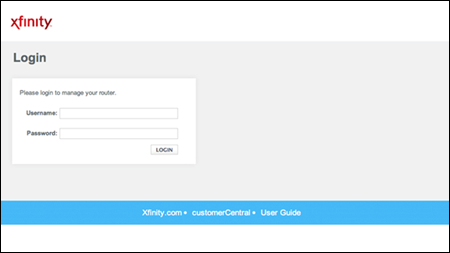
- Once inside, you’ll see the router’s admin dashboard with multiple setting options.
- From here, you can change WiFi passwords, update the SSID, create guest networks, or apply security configurations.
Default Login Credentials
Most routers that use it come with factory-set usernames and passwords. These credentials help you log in for the first time and can later be changed for security.
|
Router Brand |
Default Username |
Default Password |
Notes |
|---|---|---|---|
|
Xfinity / Comcast |
admin |
password |
Commonly used in the U.S. for home routers. |
|
LPB Piso WiFi |
admin |
123456789 / admin1234 |
Some models may use administrator as username. |
|
Cisco Routers |
admin |
admin |
Default on many small business routers. |
|
TP-Link |
admin |
admin |
Works for most models until changed. |
|
D-Link |
admin |
admin / blank |
Password may sometimes be empty. |
|
Netgear |
admin |
password |
Widely used in home and office setups. |
|
Huawei Routers |
admin |
admin@123 |
Common with 4G/5G routers. |
|
ZTE Routers |
admin |
admin |
Standard across multiple models. |
How to Change WiFi Password via 10.0.0.1
Changing your WiFi password using this one is one of the easiest ways to keep your internet secure. It ensures only trusted devices connect to your home or office network. Follow these steps:
- Connect your computer or mobile device to the router’s network.
- Open a browser and type http://10.0.0.1 in the address bar.
- Log in with your router’s username and password.
- From the admin panel, go to the Wireless Settings or WiFi Settings section.
- Locate the option for Password/Passphrase and enter your new password.
- Save changes and restart the router to apply the new settings.
Troubleshooting Issues with 10.0.0.1
Sometimes users face problems while accessing 10.0.0.1. These issues are common but can be fixed with simple solutions. Below are the most frequent problems you might encounter:
- Page Not Loading – The router login page fails to open due to wrong IP Address entry or unstable internet.
- Incorrect IP Address – Many users type 10.0.0.0.1, which is invalid and causes errors.
- Slow Response Time – The page may take too long to load because of weak connections or router overload.
- Unresponsive Router – Hardware glitches or outdated firmware can stop the router from responding to 10.0.0.1.