
10.0.0.1 piso wifi pause
Piso WiFi has become one of the most popular internet solutions in the Philippines. It allows people to connect online at affordable rates using coin-operated or voucher-based systems. At the core of this setup is the 10.0.0.1 Piso WiFi portal, which gives both users and vendo owners full control over internet sessions.
How to Use 10.0.0.1 Piso WiFi Pause
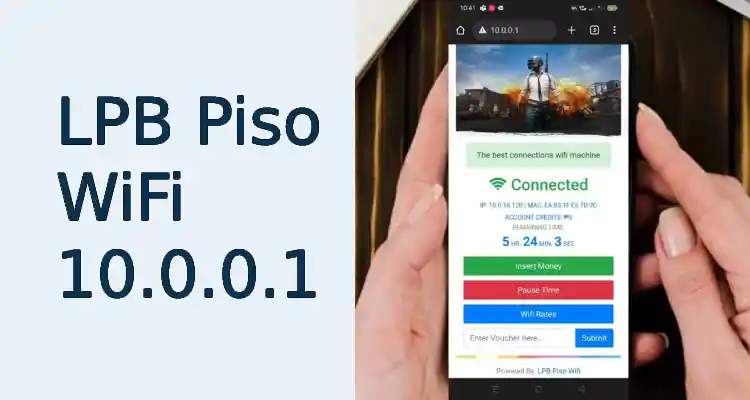
For many customers, saving internet credits is just as important as fast connectivity. 10.0.0.1 piso wifi pause portal makes this possible. Instead of letting your paid time run while you are away, you can stop it and resume later.
Here’s how it typically works:
- Connect to the Piso WiFi network – Open your device’s WiFi settings and choose the Piso WiFi hotspot.
- Enter the 10.0.0.1 portal – Open a web browser and type http://10.0.0.1 in the address bar. This will take you to the Piso WiFi portal page.
- Log in with your session details – If you have entered a voucher code or paid via the vendo machine, you’ll see your remaining time on the dashboard.
- Click on the Pause option – Look for the pause button to stop your internet session temporarily. Your remaining balance will be saved until you decide to resume.
- Resume when ready – When you come back, just log in again and click on the resume button to continue using your remaining time.
This feature is particularly helpful for users who are multitasking, attending classes online, or taking breaks during work. Instead of losing credits while idle, you can manage your internet usage smartly.
How Admins Access 10.0.0.1/admin
While users rely on the pause feature, admins and vendo owners use the 10.0.0.1/admin panel to manage the entire system. This admin dashboard is the control center of Piso WiFi, allowing owners to set prices, adjust pause settings, and monitor usage.
To access the admin panel:
- Connect your computer or phone to the Piso WiFi network.
- Open a browser and type http://10.0.0.1/admin.
- Enter the default credentials (commonly admin/admin) or the customized username and password.
- Once inside, you’ll see several options such as time settings, rate adjustments, user activity logs, and pause configurations.
From here, admins can enable or disable the pause feature, manage bandwidth, and even reset sessions if needed. For security, owners are strongly advised to change the default login credentials immediately after setup. This prevents unauthorized access and keeps customer data safe.
Security and Privacy Considerations
Whether you are a user or an admin, security is a critical part of the Piso WiFi system. Since both customers and owners rely on the 10.0.0.1 portal, protecting access is essential.
For users, here are some quick tips:
- Always make sure you are logging in through the correct portal URL (10.0.0.1). Fake links can sometimes appear in unsafe networks.
- Avoid entering sensitive information, such as online banking details, while connected to public WiFi.
- Use the pause feature wisely to prevent wasting time and to reduce unnecessary exposure while you are away from your device.
For admins, stronger security practices are required:
- Change default credentials immediately after installation. Using “admin/admin” makes the system vulnerable to unauthorized access.
- Update the firmware regularly to ensure the system has the latest security patches.
- Monitor user activity logs to detect any unusual patterns.
- Secure the vendo machine physically to prevent tampering.
Privacy is also an important factor. Users should feel confident that their data is not being misused, while owners should ensure that they comply with local rules and regulations regarding customer information.